Changing user information
To enter the settings view you must click on the wheel icon in the Home view.

Changing user information
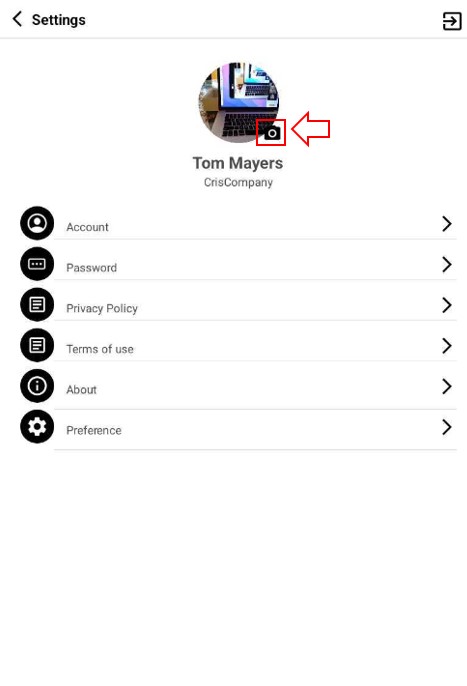
In the settings view you can see your photo, name, company, and some options. To see and change your user information. Select the Account option. Clicking on the arrow or the name.

In this view, you can see your information such as: First name, Last name, Email, Birthdate, number cellphone, country, state, and city. To edit the information, click on the EDIT button.
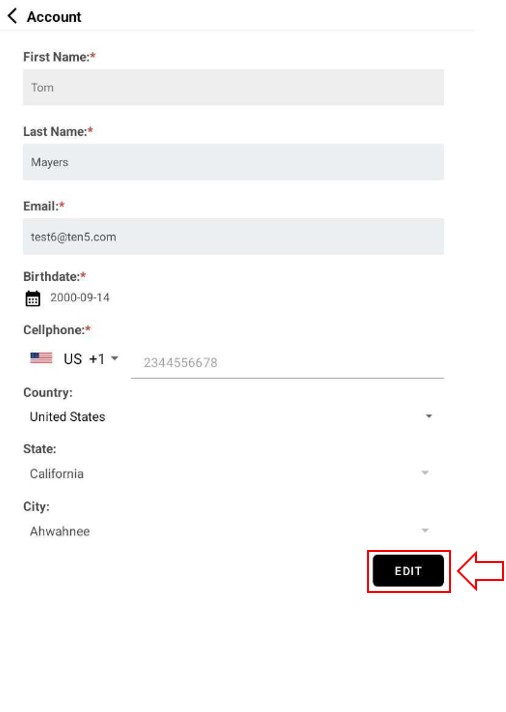
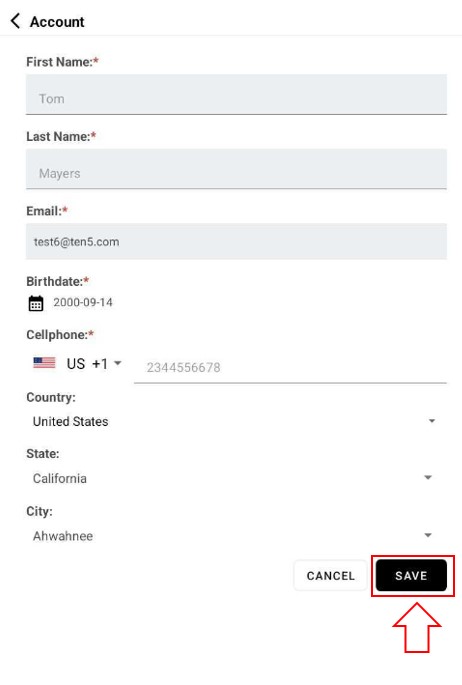
You can change your information, except by mail. Once the information is updated, click the SAVE button.
Changing user image
To change your user image, you must first clicking on the Camera icon button.
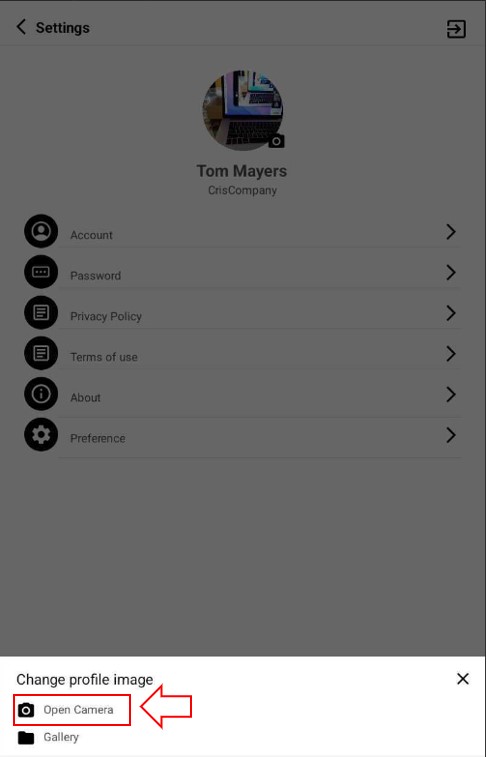
Clicking will display a popup window to select your method of changing the image, either taking a photo from the camera or selecting one from the gallery.
Changing user image with camera
To change the image by taking a picture with the camera, select the Open Camera option.
Your device's camera will open, take the photo and select accept.

Changing user image with image gallery
To change the image by selected a photo on your device, select the Gallery option. And select the photo to upload.
